
Minecraft for Android and iPhone
A Bedrock .mcaddon is imported into Minecraft; it is not a separate mobile app. These links go to the Mojang listings on the official stores.
Import the companion pair or the separate bundle
Their Minecraft names are JennyModBeh and JennyModRes. Open each with Minecraft and wait for its import result. On Android, use the file manager's Open with action if tapping opens an archive viewer. On iPhone or iPad, locate the file in Files and use the available share/open action for Minecraft. If the app is absent from the chooser, confirm Minecraft is installed and the download is the actual pack rather than a browser HTML page. For Jenny Dweller, open the mcaddon separately: it already bundles its own two packs.
Activate components in the world you will play
Create a new world or edit a backed-up copy, open Behavior Packs and activate JennyModBeh, then open Resource Packs and activate JennyModRes. Check both in the same world's settings before loading it. Imported packs can exist in storage without being active in a world, so an import-success message is only the first half of installation. Use experimental options only when the chosen pack's actual requirements call for them; there is no universal set of switches for every historical release. After entering the world, use Creative inventory and the package's own item labels. Java shortcuts such as F3+T and the Forge Mods screen are not Bedrock import controls.
Installation steps
Choose the companion pair or Dweller
For JennyModBeh/JennyModRes, save both mcpacks. For Dweller, save its separate mcaddon. The bundle is not a third dependency of the companion pair.
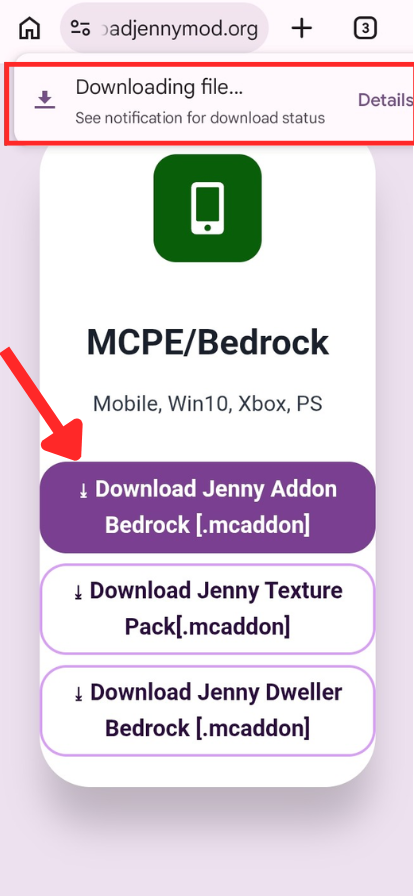
Wait for the download to finish
Check the full extension and the registry file size. A saved web page or partial archive will not become a working pack by renaming it.
Open the package with Minecraft
Use Open with in Android or the available Files share/open action on iOS. On Windows, choose Minecraft for the selected mcpack or mcaddon.
Read the import result
Let the importer finish before opening the world. Resolve duplicate-pack or invalid-archive messages first so you know the intended component is actually available.
Edit the target world
Create a new world or edit a backed-up copy. Imported content in global storage still needs to be selected in the world you intend to play.
Activate behavior and resources
For the companion pair, activate JennyModBeh in Behavior Packs and JennyModRes in Resource Packs. For Dweller, activate the components included in that bundle.
Load the world and use its items
Open Creative inventory and use the selected package’s actual entries. If visuals are missing, return to the resource component before reinstalling unrelated content.
Finish the import from the file manager
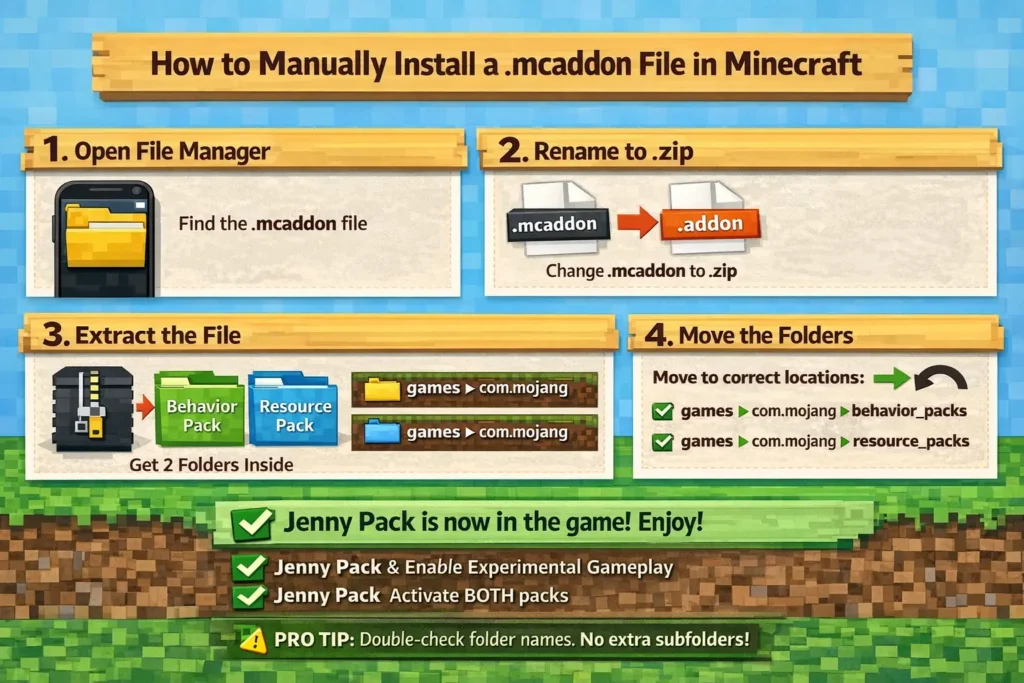
Wait until the download completes, then use the device's file manager rather than repeatedly tapping the browser's progress notification. In Android, open the download's details to confirm the real extension and choose Minecraft from Open with when available. An archive app such as ZArchiver may display the contents; viewing those contents is not the installation itself. Return to the intact MCPACK or MCADDON and send that file to Minecraft. Avoid extracting individual textures into a random folder, because the pack's manifest and directory structure belong together.
In iOS or iPadOS, locate the completed download in Files. Use its share action and select Minecraft if the system offers it. A cloud-stored file may need to finish downloading to the device before another app can receive it. If Minecraft reports an error, read the import result before changing the file. A duplicate-pack message is different from a malformed archive or a missing dependency. Repeating the same import without changing the cause will repeat the same result.
Once both companion packs are available, edit the world before pressing Play and check their active lists. If you have imported several variants, select the intended matching pair rather than activating everything. Start with one bundle in a fresh Creative world so another pack cannot override the same resource or entity while you set it up. Keep the original files available for reimport, and back up your worlds before removing imported content from Minecraft storage. App data and world saves should not be cleared as an initial import fix.
Keep file naming and world selection clear
The download filename and the name Minecraft displays are different views of the same pack. Jenny-mod.mcpack imports as JennyModBeh and Jenny-texture.mcpack as JennyModRes. Seeing those shorter names is expected. Do not look for an APK or rename the resource pack to the behavior filename to make the names match. They are two separate roles linked by the manifest dependency.
On Windows Bedrock, use the completed package's Open action with Minecraft in the same way that the phone route hands the file to the game. The Java Edition launcher and its mods folder are not part of this import. If Windows opens an archive viewer, choose the appropriate application association for the package rather than extracting its folders into a Java installation. After import, select the intended world and activate its components there.
For an existing world, make a copy first and change that copy's settings. For a new world, keep the selected bundle alone while discovering its content. You can import both companion files without activating Dweller at the same time. If you change worlds later, check the new world's pack settings again; activation is not a device-wide switch. When finished, retain the intact downloads and your world backup separately so a later storage cleanup does not remove both the installed content and its recovery copy.
1. Verify the add-on
- Confirm .mcaddon or .mcpack format.
- Check the supported Bedrock version.
- Review source, hash, size and scan information.
- Avoid APK or executable installers presented as simple packs.
2. Import into Minecraft
Open the downloaded pack and select Minecraft when Android asks which app should handle it. Wait for the in-game import-success or import-failure message before continuing.
3. Activate the packs
Create a new test world, open Behavior Packs and Resource Packs, and activate every component required by the add-on. Some files also require documented experimental gameplay options.
4. Troubleshoot import problems
- Recheck the file extension and download completion.
- Remove an older duplicate pack.
- Confirm enough device storage.
- Check manifest compatibility with your game version.
- Do not use Java Forge instructions on Android Bedrock.
Choose your next step
Sources used for this guide
These primary references support the technical file, loader and package details on this page.
- GitHub: ZellRaihan/Jenny-Mod releasesgithub.com
- Microsoft Learn: Add-on pack manifest referencelearn.microsoft.com
- Microsoft Learn: Add-on development workflowlearn.microsoft.com
- Microsoft Learn: Latest platform version guidancelearn.microsoft.com
Frequently asked questions
Should I install an APK?+
A normal Bedrock content pack should use Minecraft's supported pack formats; treat unrelated APK installers cautiously.
Why did the import succeed but nothing changed?+
Confirm that every behavior and resource component included with the add-on is active for the test world.
Does import success activate a world automatically?+
No. Edit the target world's Behavior Packs and Resource Packs settings to activate its components.
Which names should appear after the two imports?+
JennyModBeh for behavior and JennyModRes for resources.
Is every experiment switch required?+
Use only the settings required by the selected package and its current import messages.
Where do I change which world uses a pack?+
Edit that world’s settings; importing into storage alone does not select a world.
What should I do with a filename ending in .mcpack.zip?+
Check the complete filename and verify the downloaded bytes before renaming it. If the file matches the approved MCPACK hash, removing an added .zip suffix preserves the content and lets the intended .mcpack extension identify it to the operating system. If the hash differs, the file may be incomplete, modified or wrapped in another archive. Return to the direct source instead of assuming that changing the extension repairs the contents. Use the file manager’s details or rename control to see the real final extension, then open the intact pack with Minecraft. Apply the same distinction to MCADDON files. File naming affects which app opens the download; the internal pack still needs its manifest and resources to remain together.
What if Minecraft is missing from the Open or Share menu?+
Confirm that Minecraft is installed and that the completed download is available locally rather than only as a cloud placeholder. Check its real extension and compare the file with the selected record. On Android, use the file manager’s application chooser; on iPhone or iPad, use the available Files share action. The system can offer different choices depending on the file type and installed applications. Keep the original pack intact and try the corresponding open action after those checks. Do not substitute the Java JAR or an unrelated Android installer. Once Minecraft receives the file, wait for its import result, then activate the pack in the intended world. The import menu and world activation are two separate steps.